Hidden UI

A couple of days ago, I discovered that the space where my iTunes playlists were supposed to appear had gone totally blank. Freaking out a bit, I quit and relaunched iTunes. No joy. Restarted the computer. No joy. Started digging around in plist files with no luck. Web searches turned up nothing useful.

Today, discovered by accident that if you hover your mouse over the Genius or Playlists section header in the nav, the word “Show” appears. It’s a show/hide UI element without the traditional disclosure triangle. The user is given no clue before rollover that there’s even an element there to click. Since I hadn’t hidden the playlists intentionally, I had no idea it was even possible.

I wonder how many users accidentally hide their playlists and never get them back, or end up calling AppleCare or heading for the Genius Bar for help. A very un-Apple like UI decision, IMO.

Coincidentally, I recently spent time at work solving an almost identical UI problem, going the extra mile to make sure users didn’thave to roll over an area to find hidden controls. Maybe we should have gone the Apple route on this one? I don’t think so.

Building LED Flashlights in Altoids Tins

I spent a couple of hours with my son’s fourth/fifth grade classroom today, teaching them to build LED flashlights in Altoids tins. This project was both simpler and more complicated than last year’s Bristlebots project – fewer parts to manage, but we went deeper into electrical and electronics concepts. The students learned about voltage, insulators, conductors, circuit load, diodes, polarity, and various types of switches. And had a great time! Every single kid finished with a working flashlight. Some even enjoyed the process so much they stayed after school to build a second one.

I started with this recipe from Instructables.com, but modified it a bit (we used a single LED and battery to reduce wiring and to eliminate the need for resistors, though we did talk about resistance).

One of the biggest challenges for me was figuring out how to drill clean holes in aluminum – every attempt with a punch or standard drill bit resulted in sharp, ragged, non-round holes. Finally figured out that what I needed was a “graduated” drill bit. Happily, I found one from the 1940s in a toolchest that I had inherited from my grandfather. So not only was the bit we used ~70 years old, but I later learned that my grandfather made all his own bits! He would have been proud to see us using his tools this way.

Sorry I didn’t get more photos of the process – no shots here of drilling or soldering, or of the kids playing with their finished flashlights in a dimmed room,  but was bit busy…

View the Flickr set with captions, or check the slideshow version below.

FreeDive – Searchable Web DBs for Journalists

Problem: Journalists often don’t have access to programmers who can help them build searchable web databases, and are often stuck behind inflexible CMSs.

Solution: +Len De Groot and I built FreeDive, a CMS-independent web-based tool that lets journalists transform Google Spreadsheets into sortable, searchable modules that can be dropped into any web page.

FreeDive was the last big project I worked on at KDMC before moving on – incredibly proud to see its official launch today!

http://multimedia.journalism.berkeley.edu/tools/freedive/


Arduino Local Ethernet Connections via Shared WiFi

There are a ton of great ideas out there for intertube-connected Arduino projects, but you may find yourself in this situation:

  • Router has no more unused ports
  • You prefer not to be chained to your router, which may be inconveniently located
  • Your Arduino network shield is not WiFi enabled

I prefer to work on a Mac laptop with a WiFi connection, but wanted to do network experiments with an ethernet Arduino shield. Here’s the solution:

  1. Go to System Preferences | Sharing
  2. Enable Internet Sharing
  3. Share the connection from WiFi to Ethernet

Now you can connect an Ethernet cable from your Mac to your Ethernet shield. Because the Mac takes care of crossovers automatically, this will “just work.”

Next you need to find out what IP address to use in your Arduino sketches. Open  a Terminal and type:

ifconfig en0

A few lines down, you’ll see something like:

inet 192.168.2.1

Change that “.1” at the end to any number under 255 and you should have an address that’s shared through your WiFi network, through your Mac, and usable in any Arduino ethernet sketches (I’m using 192.168.2.10).  Now you can work without worrying about being tethered to a physical router, or being out of free ports.


Arduino experiments

Got the Ethernet shield today, and was able to put together a simple circuit and hack up / modify a couple of existing sketches. I can now contact Twitter through the API, examine a tweet, and light the green LED if a certain word exists in that tweet, light up red if it doesn’t. Baby steps, but it’s starting to click.

Circuit hacking is fun!

The Invention of Cut-and-Paste

How do you design a computing interface for six seven billion people? There’s no single app or operating system that everyone uses, but there are computing paradigms that are literally universal. One of those is the simple ability to cut-and-paste text – something so fundamental that it seems to always have been there. But it wasn’t – it had to be invented, had to evolve, like everything else in this world.

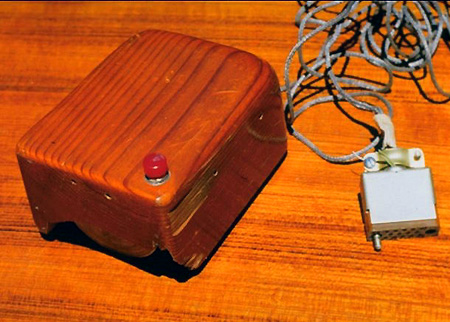
Fascinating talk by Larry Tessler at the Bay Area Computer Human Interaction last night. Tessler was at Xerox PARC and Apple in those legendary early days when the computer was being elevated from a purely command-driven interface to GUI systems. The computer mouse had just been invented, but since it was a newborn, no one yet knew exactly how it would be used. Engineers fought over how many buttons it should have, and what those buttons should do. And it simply hadn’t occurred to anyone yet that dragging the mouse over text could do something interesting.

Tessler was working on the Gypsy word processor, and struggling at every turn to eliminate blocking “modes” from computer interfaces. Deleting a word from a sentence had involved complex verb -> noun -> action sequences, as in “Delete word #6… OK do it.” The paradigm of selecting text and then acting upon it (noun -> verb) hadn’t been invented yet. But while the very concept of text selection was being imagined and implemented, the mice of the day were clunky and difficult to aim. Dragging out selections was an erratic process, and the software already had to employ predictive algorithms that figure out what you meant to select rather than what you actually did select.

To early users, the concept of an invisible clipboard was strange, so a strip at the bottom of the screen called the Waste Basket held cut text; you could pull cut text out of the Waste Basket and place it elsewhere in your document at any time.

Over time, concepts of text selection and the invisible clipboard spread to other software, then to other operating systems. Today they work identically in virtually every computing environment, so welded to the fundamentals of user experience that we never even think about them. Eye opening to learn how much thought, how much trial and error went into the development of these basic concepts.

Also interesting to hear how Apple ended up with the one-button mouse, even though the mouse started off as multi-button. The key, as Tessler described, was that 99% of end users of the time had never touched a computer in their lives. A multi-button mouse introduces complexities we don’t think much about today – should the 2nd / 3rd button emulate the Cmd key or the Ctrl key? Should one of the buttons be for un-do? Etc. etc. In the absence of the common right-button paradigms we have today, multi-button would have introduced a lot of unnecessary confusion. Ironically, Tessler described a meeting decades later in which he and a fellow engineer who had fought for multi-button back when reversed their positions – Tessler admitting that maybe they should have launched with multi-button, and the other guy admitting he should have fought for single button from the start.

An iTunes annoyance… and a solution

If you store your music on an external drive, and that drive becomes unreadable for some reason (disconnected, or read-only as mysteriously happened to me), iTunes will silently start storing new tracks on the internal drive, and will switch the storage preference from the external path to the internal one. Result is that your collection gets split across multiple devices, without you knowing about it.

When you finally discover this has been happening, you could have hundreds of albums stored in the wrong place. Here’s the fix: After re-attaching or repairing the external drive, re-set the storage location in preferences, then select all tracks (tens of thousands is just fine), right click on the selection, and choose “Consolidate Files.” This will trigger a script that examines the location of every track referenced in your library and copy it to the preferred location if it’s not there already. Nice.

PhotoStream

One Lion/iCloud feature I didn't really pay much attention to but that I'm starting to really love is the PhotoStream. I regularly work on four different Macs (two at work, two at home). Having all my recent photos, taken with any device – available everywhere always without ever having to sync – is turning out to be super useful.

Google+: View post on Google+