Drupal or Django? A Guide for Decision Makers


Target Audience

drupliconThere’s a large body of technical information out there about content management systems and frameworks, but not much written specifically for decision-makers. Programmers will always have preferences, but it’s the product managers and supervisors of the world who often make the final decision about what platform on which to deploy a sophisticated site. That’s tricky, because web platform decisions are more-or-less final — it’s very, very hard to change out the platform once the wheels are in motion. Meanwhile, the decision will ultimately be based on highly technical factors, while managers are often not highly technical people.

django-logo-negativeThis document aims to lay out what I see as being the pros and cons of two popular web publishing platforms: The PHP-based Drupal content management system (CMS) and the Python-based Django framework. It’s impossible to discuss systems like these in a non-technical way. However, I’ve tried to lay out the main points in straightforward language, with an eye toward helping supervisors make an informed choice.

This document could have covered any of the 600+ systems listed at cmsmatrix.org. We cover only Drupal and Django in this document because those systems are highest on the radar at our organization. It simply would not be possible to cover every system out there. In a sense, this document is as much about making a decision between using a framework or using a content management system as it is between specific platforms. In a sense, the discussion about Drupal and Django below can be seen as a stand-in for that larger discussion.

Disclosure: The author is a Django developer, not a Drupal developer. I’ve tried to provide as even-handed an assessment as possible, though bias may show through. I will update this document with additional information from the Drupal community as it becomes available.

Continue reading “Drupal or Django? A Guide for Decision Makers”

django-treedata: DataSF Contest Winner

treewordle-150x150Recently I was invited to participate in the California Data Camp and DataSF App Contest hosted by California Watch and spot.us. The unconference would feature lots of discussion about making use of publicly available data sets to improve quality of life. The App Contest challenged developers to choose one of the many data sets available at DataSF.org and build something cool with it in a relatively short period of time.

Long story short — my contest entry, which explores San Francisco’s database of publicly maintained trees and plants, won the competition! Full details, and downloadable source code, available at my Scripts and Utilities site.

Thanks so much to David Cohn of Spot.us and all of the conference organizers and supporters. Thanks also to J-School webmaster for Chuck Harris for his contributions to the project. It was a great day, and winning the competition was a total surprise. Now I just need a city to take the source code and run with it.

spot.us has covered the event live throughout the day.

Huffington Post mentioned django-treedata in Sophisticated Tree Hugging: the Pure Joy of Public Data

Birdhouse 960

960 Blog look different? At first glance, not by much, but I’ve just completed a massive cleanup of the back-end, replacing the old HTML/CSS with the 960 Grid System, starting with the 960bc (blank canvas) WordPress theme. While I was at it, took the opportunity to search/replace out a bunch of old non-semantic code buried in the posts, updated or replaced a lot of plugins, and killed off a few old features that had out-lived their usefulness.

The biggest news: After years of preaching the HTML validation gospel to students, I still hadn’t gotten around to trying to make my own platform validate… but the Foobar Blog finally does! Well, almost. There will always be 3rd party code outside your control that can’t be hammered into shape. The biggest offenders here are embedded Flickr slideshows and WordPress’ own embedded Gallery feature. Ugh. But aside from that, we’re pretty darn close to clean. Everything I can control validates at least.

The old design had accreted slowly over the years, from a patchwork of parts built and gathered. Original intention was to go for a clean break and adopt a modern 3rd-party theme, but the more I searched, the more I felt like I loved the “Cheap Thrills” design that’s evolved here (not available for download, sorry). So I decided to port Cheap Thrills to 960. It wasn’t all roses, since the divs in this theme hug each other so tightly, while 960 assumes margins everywhere. A lot of fiddling with negative margins, and I haven’t  solved the equal height divs problem quite yet. Will do soon.

New in this pimplementation:

  • Much wider content area. Goal is to be able to show full-width video and slideshows, plus code samples that don’t fold to the next line or stretch out of the content space.
  • Syntax highlighting for code samples (example)
  • Tag cloud (see sidebar) – I’ve been tagging random articles for a long time but didn’t want to display a cloud until there were enough of them to warrant it. Still haven’t gone through and tagged the entire site history, but the cloud is picking up steam.
  • General cleanup. Cruft removal. So. Much. Cruft.
  • Somewhat wider sidebar – more room for Image from Nowhere and Recent Comments. Some of the old Images from Nowhere look a bit stretched but future ones will be generated larger.
  • Replaced my old handmade RSS-based Twitter integration with Twitter for WordPress. Super clean – much better for DIY theme builders than the usual TwitterTools.
  • The old Democracy plugin for polling appears to have been abandoned. Replaced it with the much cleaner WP-Polls, which also meant manually copying all of the old Poll data into the new system (ugh!). See the Pollster section.
  • Replaced the old contact form  in the shacker contacter with the much simpler Contact Form 7.
  • Nips and tucks galore.

Process took way longer than expected of course – everything does – but these things had been gnawing away at me for a long time now. Feels great to have it all done. Haven’t done any cross-browser testing yet – let me know if something doesn’t look right for you.

Can’t say enough good things about 960 Grid. We’ve standardized on it at work, and it really does make life easier. Not without its warts, but much more pleasant than the YUI grid it replaces.

Generating RSS Mashups from Django

I recently got to work on an interesting Django side project: the Bay News Network – a directory of Bay Area bloggers and hyperlocal news sites. The goal of the site was three-fold:

  1. To create a many-to-many directory of local sites that matched our editorial criteria
  2. To let site owners log in and edit their own listings
  3. To both consume and produce RSS feeds from the listed sites

The first two were pretty standard Django approaches – develop data models and editing interfaces using Django forms and re-usable apps like django-profiles and django-registration. The third goal turned out to be more interesting. We not only had to gather RSS feeds from more than 100 external sites several times per day, we needed to re-mix them (e.g. provide an integrated feed representing all blogs that cover Food, or all blogs that cover Oakland).

“Consuming” RSS feeds meant we needed to integrate feeds from the external sites into our own site. At the most basic level, this was pretty straightforward using Mark Pilgrim’s excellent Universal Feed Parser, which turns the real-world’s tag soup of disparate, incompatible RSS formats  into a reliable data format you can step through in your code or templates. This worked well enough until I realized that grabbing and parsing external feeds in real-time was just not going to scale, performance-wise. Plus, we still had the RSS mashups to build, and would clearly need to be storing feed entries in our own database in order to sort them by category, etc.

Thus began the hunt for good feed aggregation systems for Django. Most roads pointed to django-planet, planet planet, and FeedJack, which are systems for gathering content from external sites and importing it into a single aggregated site. These were close to what I wanted, but weren’t great on the re-usability side. Since I already had  existing models to define the sites, their owners, and their feeds, I didn’t want to rewrite all my models to work with another system’s conception of how things should be laid out. I also didn’t feel like plowing through their source code to chop out and rewrite just the bits I wanted. Eventually realized that I was looking for a few lines of code to work with my system, not a whole external system.

The surprising solution came from the Community section of the official Django project web site. The Django developers keep the code that drives djangoproject.com in subversion along with the source code to Django itself. And the code that drives that section of the site is really lightweight. So I did a subversion checkout of the Aggregator app, and found that all I really needed from it was its update_feeds.py script, which itself is a wrapper around Universal Feed Parser, tweaked to talk to my own models.

Two gotchas to be aware of:

  1. The app includes a bundled templatetags directory with a file called aggregator.py. But the name of the app itself is “aggregator.” I was getting strange import errors in various places before I discovered on the django-users mailing list that Django doesn’t like it when an app name matches a templatetag name. Easily fixed by renaming the templatetag.
  2. My first runs of update_feeds.py went fine, but later started erroring out with database integrity errors. The GUID field on the FeedItem model is set to unique=True, which prevents your database from storing any one FeedItem more than once. That’s great, but it was dishing up integrity errors for some reason. I fixed this by changing this line in update_feeds.py:
feed.feeditem_set.get(guid=guid)

to:

FeedItem.objects.get(guid=guid)

Once I was able to get the updater to run consistently without error, I needed to get it running via cron. The trick to running a Python script that talks to the Django ORM from a crontab is that you must supply the full Python paths in the environment to cron – it doesn’t pick them up automatically from the environment of the user that runs the cron job. This worked for me:

PYTHONPATH=/home/bnn/projects:/home/bnn/projects/bnn
DJANGO_SETTINGS_MODULE=bnn.settings
20 15 * * * python /home/bnn/projects/bnn/scripts/update_feeds.py 2>&1

Producing Feeds

With the harvesting system up and running, and all content coming into the datbase associated with blogs that were in turn categorized by “beat” and geographical area, outputting aggregated RSS feeds was a simple matter of using Django’s native syndication framework as documented. This went into urls.py:

feeds = {
    'all': AllFeeds,
    'cat': CategoryFeeds,
    'area': BeatFeeds,
}

# Feeds
url(r'^feeds/(?P.*)/$', 'django.contrib.syndication.views.feed', {'feed_dict': feeds}),

… and I created a file feedgenerator.py to contain the three corresponding classes and their querysets, using Holovaty’s sample code from chicagocrime.org as a starting point.

Populate Mailman Lists from Django Projects

I spent much of the summer building an intranet in Django for Miles’ school. Since the school is a co-op, we need to keep track a lot of stuff – charges, credits, and obligations, parents, students, teachers, family jobs, committee membership, the board, etc. etc. I’m happy with how the site came out, but unfortunately can’t share it here, since it’s a private site.

One of the goals of the rebuild was to put an end to the laborious manual process of maintaining the school’s multiple overlapping mailing lists. Since all of those relationships, people types, and groups were already stored in the intranet’s database, I figured it should be possible to run various queries and populate Mailman mailing lists from them directly. Due to the messy nature of the real world, the process was a lot trickier than it sounds on paper, but I eventually did get a smoothly working list generation system up and running, talking to our Django system and working with virtually no manual intervention. Members can update their own profiles and find that their mailing list subscription address has changed automatically a few hours later. Administrators can give someone a new family job or board position and that person will find themselves subscribed to the right mailing list for it later that day.

Since there isn’t much published out there on making these two systems (Django and Mailman) play nicely together, I decided to publish the scripts and document the recipe I used to get it all working. Hope someone finds the system useful.

django-profiles: The Missing Manual

The User model in Django is intentionally basic, defining only the username, first and last name, password and email address. It’s intended more for authentication than for handling user profiles. To create an extended user model you’ll need to define a custom class with a ForeignKey to User, then tell your project which model defines the Profile class. In your settings, use something like:

AUTH_PROFILE_MODULE = 'accounts.UserProfile'

To make it easier to let users create and edit their own Profile data, James Bennett (aka ubernostrum), who is the author of Practical Django Projects and the excellent b-list blog, created the reusable app django-profiles. It’s a companion to django-registration, which provides pluggable functionality to let users register and validate their own accounts on Django-based sites.
Continue reading “django-profiles: The Missing Manual”

GMail vs. Mail.app

Gmail-1 Confession: I’ve never liked webmail – I was a hardcore Eudora user for ages, then spent five years with BeOS desktop mail clients, then a year with Entourage on the Mac before finally switching four years ago to Apple’s Mail.app, with its flawless IMAP implementation. Every time I’ve tried the “next generation” of webmail clients, they’ve felt anemic to me, and I’ve felt like my workflow slowed way down — not because they were slow per se’, but because of the dozens of small niceties you get with desktop clients that you don’t get with webmail. I’ve relegated webmail to something you use when you’re not at your own machine for some reason and/or aren’t able to take the two minutes it takes to configure IMAP at a foreign machine.

Mailapp-1 That’s why I’ve always been amazed to see how many developers and gear-heads use GMail. These are tech-savvy people, who I’d think would have the same frustrations with webmail that I do. What are they seeing that I’m not seeing? I totally get the convenience factor of being able to access my mail through any web browser, anywhere. I wouldn’t mind having that, but so far it hasn’t seemed worth the sacrifices. I know GMail keeps getting better, so thought it was finally time to give myself over to GMail for a week and see how it goes. Here are some notes on that experience.

n.b.: I’m using Google’s official list of keyboard shortcuts. I used the 3rd party tool A to G to convert Apple’s Address Book to CSV, then imported 1200 contacts into GMail’s contact system.

My list of GMail gripes, with a few faint praises in the mix:

No way to change the default reading font. Really??? The default reading/writing font is just too small to be comfortable (for me), and it’s ridiculous that something this straightforward and ubiquitous in desktop clients would not be there. How hard can it be to give the user a choice of common font faces and sizes? Does not compute.

No way to quote previous text before replying. Every desktop mail client I’ve used lets you select a block of text in a message, then hit Reply. Only the selected text appears in the reply. This is so core to netiquette and to my every day workflow that it seems like a non-negotiable feature. And yet no webmail client I’ve tried supports it. Not even GMail. No wonder over-quoting is such a problem these days. Later… OK, I discovered that this “feature” is actually available under Settings | Labs. When I enabled it, it complained that it could “not be loaded,” and continues to complain every time I exit the Settings menu, though it did work correctly in my first test. Cool, but why is it in Labs, as if it’s some kind of optional convenience that only a few people might want? How can this not be part of the default package? Core functionality.

Inline photos. A family member sent 10 photos as attachments. When viewed in Mail.app they’re displayed inline, nice and large; GMail only shows thumbnails inline, though you can click “View all images” to see them full size on a separate page. There is of course no option to “Save all to iPhoto” in GMail. Since they were family photos, that’s exactly what I wanted to do.

No preview pane. For realsies? I know of at least two webmail clients (RoundCube, which is available on Birdhouse, and Apple’s mac.com (errr, me.com)). If they can do it, why can’t one of the most popular webmail clients of them all?

More clicks to view the next message. When done viewing one message, if you click Delete or Archive, you’re taken back to the full message list, which lacks a preview pane. So you then need to click again to view the next message. This kind of “more clicks/keystrokes to accomplish common tasks” is all over the place in GMail.

No way to turn external mail checking on/off. I now have GMail configured to work as a POP client to two external accounts (would have configured it as IMAP, but GMail doesn’t support that, even though you can use external clients to talk IMAP to GMail – weird). Now I’d like to have GMail stop checking those two external accounts for a while, without removing all the config info. Too bad – the only way to make it stop is apparently to delete the account completely. Grrr…

Poor conversation threading. GMail does an OK job at this – better than other webmail clients, but nowhere near as clean visually or as easy to navigate as threaded discussions in desktop mail apps. And because GMail shows a thread all on one page (thanks again to no preview pane), deleting individual messages out of the thread takes a lot more scrolling and clicking than it does in a desktop client. GMail’s threading is a pale imitation of technology we’ve had on the desktop for years. However, I really do like being able to see my own replies automatically in the context of the thread, even without having explicitly cc:’d myself, and without having to dig through the Sent folder. But the ease of expanding and collapsing a thread, of jumping to the next unread message in a thread, of deleting individual messages from a thread… all vastly superior in Mail.app.

Threadcollapse
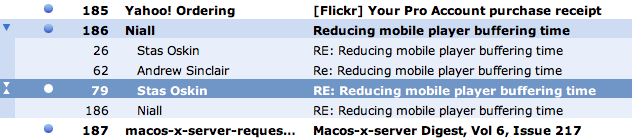
In Mail.app, a thread is indicated by the presence of an arrow in the left column.
Threadexpand
Cmd-RightArrow expands the thread; spacebar jumps you to the next unread message in the thread. The actual conversation is shown in the Preview pane. It’s easy to delete individual messages from the thread.

Keyboard shortcuts. Yes, there are some. Yes, they work for the most part. But they’re not as ubiquitous or as clean to use as the keyboard shortcuts in a desktop client. I found myself doing a lot more mousing in GMail than I’m accustomed to doing in email.

Adding contacts. I get a message from someone who’s not in my Contacts list. If there’s a way to add this person to my Contacts list on the fly, I’m not seeing it (yes, I looked). Mail.app makes this common process trivial and intuitive.

Moving messages between accounts. One of the ways I rely heavily on IMAP is the ability to drag and drop messages between various mailboxes and servers. If I receive a message at work that I want to handle at home, I drag it from calmail to birdhouse, and vice versa. If I want to pull something out of cold storage (e.g. from a local mail store and put it back on a live mail server for handling), I can do that. GMail can be configured to talk to multiple accounts, but since it itself does not work like an IMAP client to foreign mail servers, it can’t do any kind of inter-server message moving. I guess the idea is that its model makes this kind of thing irrelevant, but it feels like a big missing piece of the modern mail experience.

Integrated chat. Both GMail and Mail.app have this, but GMail clearly wins here when you’re at someone else’s computer since you don’t have to set up both the mail and chat clients (thanks @jrue for this point).

“Send Again” feature. Not something you use a lot, but when you do, it’s a real time saver. Use this after sending a message to someone who’s address has died and you want to try again to the right address, or when you left someone off the original cc: list. Mail.app and other desktop clients have it. GMail doesn’t.

Breaks quoting. Let’s say you’ve got a paragraph of quoted text in an incoming message and you want to reply to it in two parts. In a desktop client, you put the cursor where you want to break the graf and hit Return. A new quote mark is automatically added to the beginning of the new line. Not in GMail – you end up with the first line that should be quoted suddenly unquoted. Later… turns out this does work properly in rich text mode in GMail, but not in plain text mode. But I prefer to stay in plain text mode, only switching to rich text mode when necessary.
quotebroken
While replying in plain text mode in GMail, insert cursor in the middle of a paragraph and hit Return to start your reply. The new line lacks a starting mail quote mark, breaking netiquette and readability for the recipient.

No Data Detectors. OK, this is only available in Mail.app, not all desktop mail clients, but it really is a killer feature. Roll over any date or time in any format, or any person’s name or email address, even in a plain text message, and you get a little drop-down menu that lets you quickly add that item to your calendar or address book.

Datadetector-1

Data detectors do an amazing job of figuring out all the right fields — almost magic (try it with messages referencing “tomorrow” or “next Tuesday.”) GMail does have an “Add Event” option but it’s nowhere near as intelligent or as slick, and it works for the whole message, not for individual text snippets within the message. Big win for Mail.app.

Partial word searches. The search feature in GMail is nice, but is not better than the one in Mail.app. Yes, Google is a bit faster at returning results, but not by much (yes, Apple’s Spotlight is *that* fast). But here’s the kicker – Google and GMail can’t do partial-word searches. So if I’m looking for an email that I know includes the word “question” but I just type “quest” [Return] into GMail search, it turns up nothing! Wildcard searches don’t work either. Very frustrating. Even on their native search turf, Google loses to Apple. Update: There are also types of searches Mail.app can’t do, such as combined OR statements. So let’s call this one a draw.

End-of-line key combo. On the Mac, the standard keyboard shortcuts to jump the cursor to the start/end of the current line are Cmd-RightArrow and Cmd-LeftArrow. These don’t work in GMail. In fact, as far as I can tell there’s no keyboard short to do this on the Mac in GMail. Which amounts to one more reason GMail is a lot more mouse dependent than using Mail.app or other desktop client. Can’t blame this on rich text editors either — WordPress uses a TinyMCE variant, and Cmd-RightArrow works there just fine. GMail is just broken in this respect.

Ads in my email. They just bug me. I totally understand that that’s how I pay for the service. I get that. I still don’t like looking at them. Irritating. In fact, I found the whole GMail experience more cluttered and just… less elegant than working with a desktop client.

ADDED LATER

Multiple windows. Sometimes I like to have two or more messages open at once, plus a compose window, so I can copy/paste bits around and between messages, or for reference while writing something new. Easy to do in a desktop client. Assumed I could do similar in GMail by cmd-clicking messages to open them in various tabs, but nope – GMail doesn’t allow that – forces you to only be looking at one thing at a time. Is that a feature they haven’t implemented yet, or an intentional limitation? Feels like the latter.

Upshot: I didn’t follow through on my promise to try GMail for a week. The frustration was too much to deal with, and I quit after four days. I’m back on Mail.app now. I probably missed out on some of GMail’s goodness, but overall, I left feeling exactly like I did going in. GMail has its advantages, but to me, it seems like they’re vastly outweighed by the absence of basic functionality and elegance present in all desktop mail clients (and by additional features in Mail.app) that I just missed too much. Feels good to be home.

Webcasting with Django

The Knight Digital Media Center, which runs on Django, hosts week-long workshops for working journalists who come from around the country to learn multimedia and internet technology skills. We fill many of our lunch and dinner sessions with talks by journalism industry experts and pundits, and webcast their presentations live. After workshops are over, we post the archived video for posterity. There’s more to handling multi-day, multi-part live and archived video with Django and a genuine streaming server than meets the eye, so thought I’d break it down.

An “event” can last any number of days, and can include any number of presentations, each of which may or may not include a webcast. While the event is in progress, you want the ability to advertise a single URL, where all of the live webcasts will happen. But for the archives, which is where the vast majority of viewing happens over the course of time, you want a separate page/URL for each presentation. Presentation pages include details on that speaker, summaries of what was presented, and optional downloads of PowerPoint or Keynote presentations. Our Presentation model is foreign-keyed to a master Event model (or, in our case, the Workshop model).

Because they’re time-based, synchronous events, webcasts are different from typical web pages. There are five possible “states” a webcast page can be in at any given time, all of which require different things to be inserted into the view:

Upcoming: The event is announced but there’s nothing yet to show. Tell user that webcast will be live at posted time (along with schedule).

In progress: The event is occurring. Insert appropriate object code to embed live QuickTime stream.

Concluded: The live webcast has ended, but the archives haven’t yet been prepared and posted (this can take us a few days). Tell user to come back soon.

Archive: The archived video is prepared and available on the streaming server for posterity. Insert appropriate object code to display streamed archive file from QuickTime Streaming Server.

External: We sometimes host events at other locations on campus, in which case UC Berkeley handles the webcasting rather than us. If so, we need to link from our events database to theirs. Insert appropriate message and link.

In Django, we represent these choices with the typical CHOICES construct:

webcast_state = models.CharField(max_length=4,choices=WEBCAST_STATE_CHOICES)

… which ends up looking like this in the Django admin:

webcast_state

Depending on the current state, different content (text or object/embed code) is inserted into the page in real time (using simple conditionals in Django templates). The Django admin thus becomes a handy tool our student helpers can use to make the master workshop page embed the right thing in the right place at the right time without requiring tech skills. Remember, during the course of a workshop week, all video is happening in the master Workshop page – later, streaming video archives will go into separate Presentation pages and be automatically linked to from the parent Workshop page.

Stream Handles

At the J-School, we use QuickTime Streaming Server, in part because it’s free, and in part because all of our  workstations and most of our servers are Macs. We’ve contemplated switching to Flash streaming, but the simplicity of keeping everything Mac-native keeps us on QTSS for now.

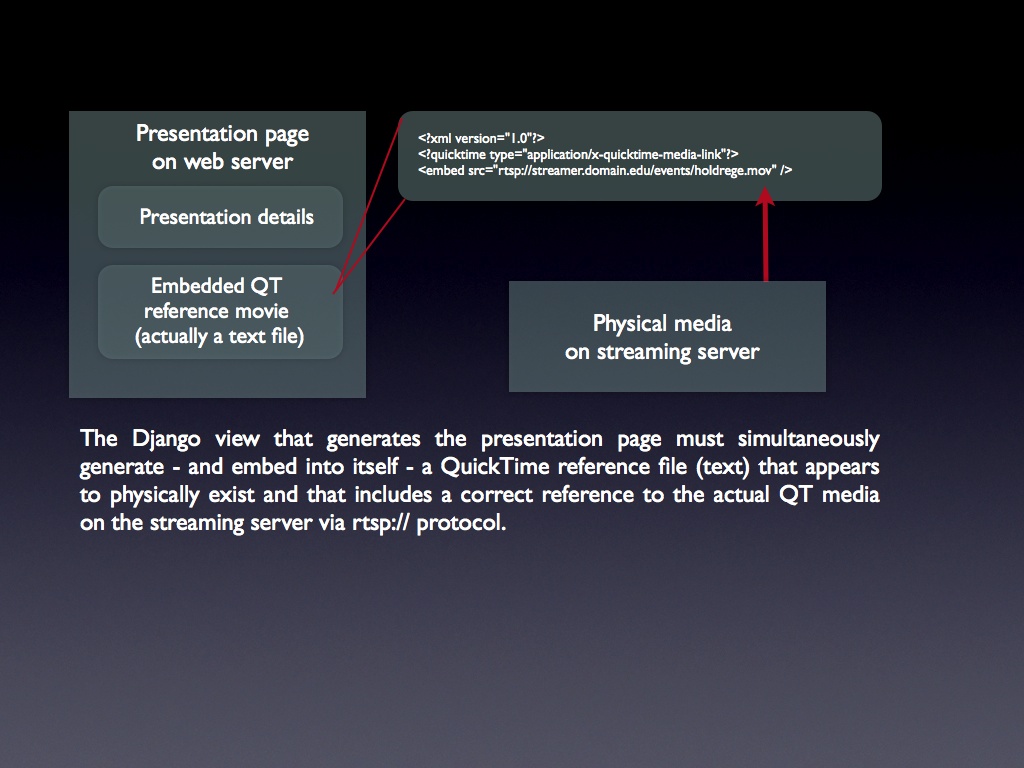
Embedding a stream from an external QTSS server is not quite as straightforward as embedding a typical QuickTime movie. Video comes from QTSS over the rtsp:// protocol, rather than http://. And there’s the catch: You can’t embed an rtsp stream directly into a web page — instead, you need to embed a fake QuickTime movie (a “reference movie”), which is actually a text file with the .mov extension. That text file simply references the full URL of the rtsp stream coming from QTSS. The contents of a reference movie file might look like this:


Here’s where things get interesting as far as Django is concerned. We don’t want to have to create a physical reference movie for every single stream we serve. And yet, at the HTML level, we have to embed something that looks like a reference to a physically external movie file, e.g.:


So how can we make Django think that /presentations/webcast-archive.227.ref.mov is an actual file on the server, which in turn contains the correct reference to the rtsp stream coming from the streaming server? In effect, it’s a “view within a view.”

webcast_setup
Click for larger version

Displaying the presentation page is straightforward Django – I won’t get into that here. But here’s how the “view within a view” stuff works. In the object section of the presentation page template there is a reference to:


which resolves to something like:


When the browser hits that line, it requests /presentations/webcast-archive.267.ref.mov from the server, which in turn triggers this entry in urls.py:

url(r'^presentations/webcast-archive.(?P\d+).ref.mov$',
'workshops.views.presentation_webcast_archive',
name='workshops_presentation_webcast_archive'),

So after the presentation page has been rendered by Django and sent to the browser, a second (very simple) view, presentation_webcast_archive, is called, which is simply:

def presentation_webcast_archive(request, pres_id):
    """
    Generate a virtual QuickTime reference movie on the fly,
    to be embedded in presentation webcast pages.
    """

    pres = get_object_or_404(Presentation,id=pres_id) 

    return render_to_response( 'workshops/presentation_webcast_archive.txt',
        {
            'p': pres,
        }, context_instance=RequestContext(request),
    )

That view spits out the same presentation object to a different template, presentation_webcast_archive.txt, which consists of:


Where webcast_path and webcast_filename are fields on the model representing the physical location of the QuickTime media on the streaming server (not the web server). After a workshop week is over, staff only need to hint the saved archive files, upload them to a directory and filename on the streaming server, enter those paths in the Django admin, and check the “Has Webcast” box. The rest is automatic.

In a previous, PHP-based version of this system, we had to prepare an actual reference movie for every archive stream we hosted. By using this “view within a view” technique, Django has let us remove that part of the workflow.